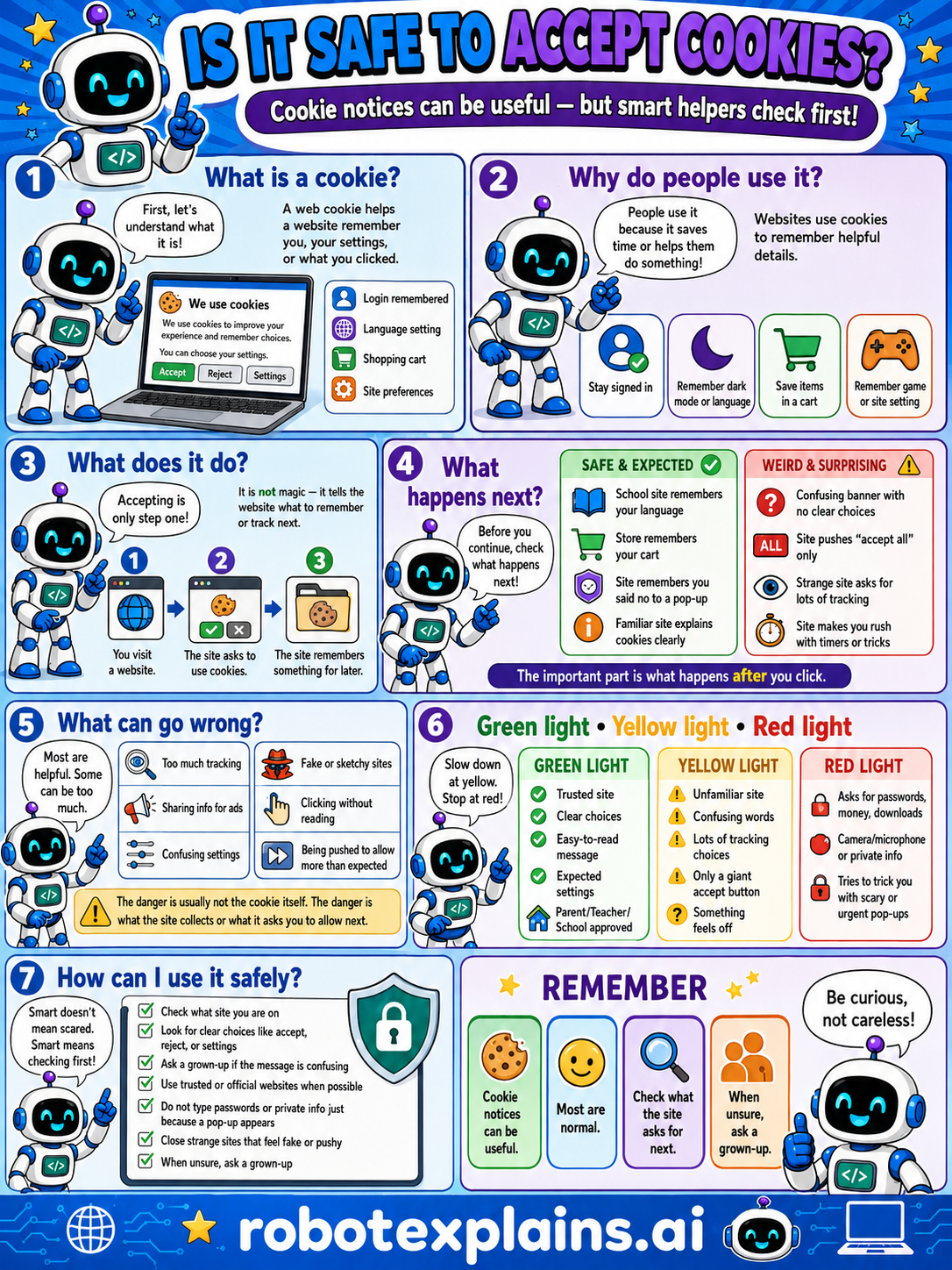
Cookie notices are usually safe, but you can choose what to accept, so read the box instead of always clicking 'accept all.'
What is it? A cookie is a way a website remembers your settings or choices, like staying logged in, your language, a shopping cart, or your site settings. A cookie helps a website remember helpful details.
Why do people use it? Websites use cookies to remember helpful details, so people use them because it saves time, like staying signed in, remembering dark or light mode, saving items in a cart, or remembering a game or site setting.
What does it do? Accepting is only one step. You visit a website, the site asks to use cookies, and the site remembers something for later. It is not magic, it tells the website what to remember or track next.
What happens next? Before you continue, check what happens next. A school site remembers your language, the store remembers your cart, or a site you said no to a pop-up on still works, that's safe and expected. A confusing banner with no clear choices, only buttons that say 'accept all', a strange site asks for lots of tracking, or a site that makes you rush with timers, that's a weird, surprising red flag.
What can go wrong? Most are normal, but some can be a lot: too much tracking, sharing info to ads, clicking without reading, or being pushed to allow more than expected. The danger is usually not the cookie itself, it's what the site collects or what it asks you to allow next.
Green light, yellow light, red light. A quick way to decide:
- 🟢 Green: a trusted site, clear choices, an easy-to-read message, an expected notice, a parent's or teacher's approved site.
- 🟡 Yellow: an unfamiliar site, confusing words, only a giant 'accept' button, or something that feels off — slow down.
- 🔴 Red: asks for passwords, money, or downloads, camera or microphone or private info, or tries to trick you with a scary or urgent pop-up — stop and ask a grown-up.
How can I use it safely? Check where the cookie box came from. Look for clear choices like accept, reject, or settings. Ask a grown-up if the message is confusing. Use trusted or official websites when possible. Don't type passwords or private info just because a pop-up appears. Close strange sites that feel fake or pushy. When unsure, ask a grown-up.
Remember: cookie notices can be useful, most are normal, but read what the site asks before you click. When unsure, ask a grown-up. Be curious, not careless!
What changed?
Every tap changes something. The trick isn't fear — it's noticing. After you say “yes,” ask: what just changed?
- Accepted all cookiesthe site can remember you and follow what you do
- Chose “only necessary”the site still works, with less tracking
- Cleared your cookiessites forget you and you start fresh
What to remember
- Cookie notices are usually safe and normal.
- You can choose what to accept.
- Read the box instead of always clicking 'accept all.'
- When unsure, ask a grown-up.
Words to know
- Cookie
- A small file a website uses to remember things.
- Cookie notice
- A box asking if a site can use cookies.
- Accept all
- Saying yes to every cookie at once.
- Choices
- Picking which cookies to allow.
For grown-ups
Cookie banners are about consent, not danger: cookies remember logins, settings, and carts, but also enable tracking. Accepting all is the easy path; the better habit is reading the notice and choosing essential-only when offered, on sites you trust. It's a privacy-choice lesson, not a security threat, framed so kids learn to pause and pick rather than reflexively click 'accept all.'
Want the full story? These go deeper: