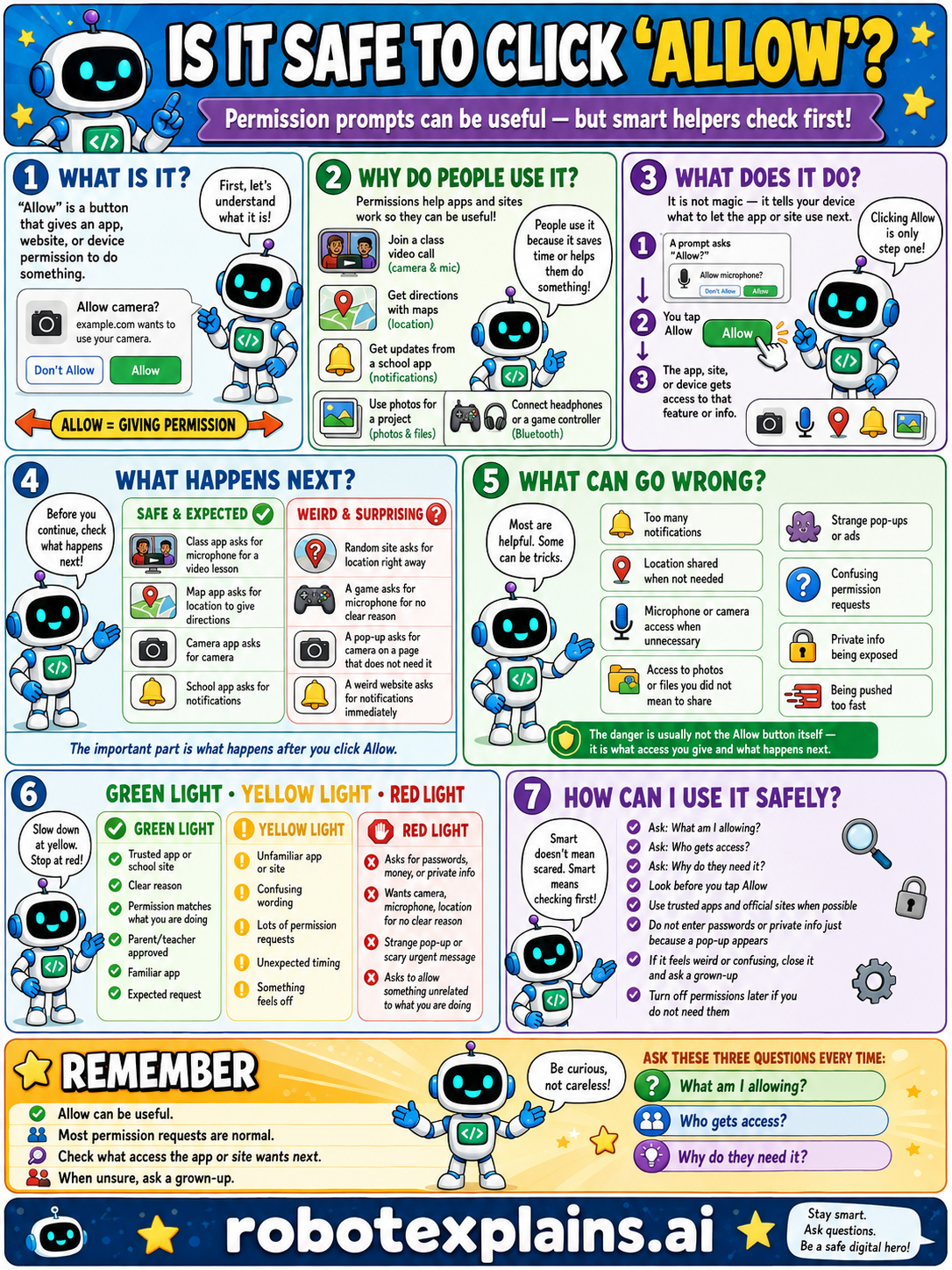
Clicking 'Allow' gives an app permission to do something, so check what access it wants and whether it really needs it.
What is it? 'Allow' is a button that gives an app, website, or device permission to do something, like 'Allow camera?' (example: lets it use your camera). Allow = giving permission.
Why do people use it? Permissions help apps and sites work so they can be useful, like joining a video call (camera and mic), getting directions (location), getting updates (notifications), or using headphones (Bluetooth). People allow it because it saves time or helps them do something.
What does it do? Clicking it is only one step. A prompt asks 'Allow?', you tap Allow, and the app, site, or device gets access to that feature. It is not magic, it tells your device to let the app or site use something.
What happens next? Before you continue, check what happens next. A class app asks for the microphone for a video lesson, or a camera app asks for the camera, that's safe and expected. A random app asks for location right away, a game asks for camera on a page that does not need it, or a weird site asks for notifications, that's a red flag.
What can go wrong? Most are helpful, but some can be tricks: too many notifications, location shared when not needed, microphone or camera access when unnecessary, access to photos or files you did not mean to share, strange pop-up asks, confusing permission requests, or private info being exposed. The danger is usually not the Allow button itself, it's what access comes with what happens next.
Green light, yellow light, red light. A quick way to decide:
- 🟢 Green: a trusted app or school site, a clear reason, a permission that matches what the app does, a parent's or teacher's app, an expected request.
- 🟡 Yellow: an unfamiliar app, a confusing wording, lots of permission requests, or an unexpected ask — slow down.
- 🔴 Red: asks for passwords, money, or private info, wants camera, microphone, or location for no clear reason, a strange or scary urgent message, or asks to allow something unrelated to what you are doing — stop and ask a grown-up.
How can I use it safely? Ask what you're allowing. Ask who gets access. Ask why they need it. Look before you tap Allow. Use trusted apps and official sites when possible. Don't enter passwords or private info just because a pop-up appears. If it feels weird or confusing, close it and ask a grown-up. Turn off permissions later if you do not need them.
Remember: Allow can be useful, most permission requests are normal, but always check what access the app or site wants next. When unsure, ask a grown-up. Be curious, not careless!
What changed?
Every tap changes something. The trick isn't fear — it's noticing. After you say “yes,” ask: what just changed?
- Allowed the camerathe app can now see through your camera
- Allowed locationan app can see where you are
- Allowed the microphonethe app can hear and record you
- Allowed notificationsit can pop up messages whenever it wants
What to remember
- 'Allow' gives permission to do something.
- Check what access the app or site wants next.
- Only allow what an app really needs.
- When unsure, ask a grown-up.
Explain it back
You understand something best when you can teach it. Finish these out loud — to a friend, a grown-up, a little brother or sister, or even the mirror:
- Allow means…
- Before I tap Allow, I should ask myself…
- A good reason to allow the camera is… and a not-so-good reason is…
Words to know
- Allow
- Giving permission for an app to do something.
- Permission
- What an app is allowed to use or see.
- Access
- Being able to use your camera, location, etc.
- Red flag
- A warning sign something might be unsafe.
For grown-ups
'Allow' grants a permission, often camera, microphone, location, notifications, or files. Many requests are legitimate and necessary for a feature; the judgment is matching the request to the need (a video app wanting the camera makes sense; a simple game wanting your location does not) and being able to revoke it. Teaches least-privilege thinking at a kid level: ask what gets access and why.
Want the full story? These go deeper: