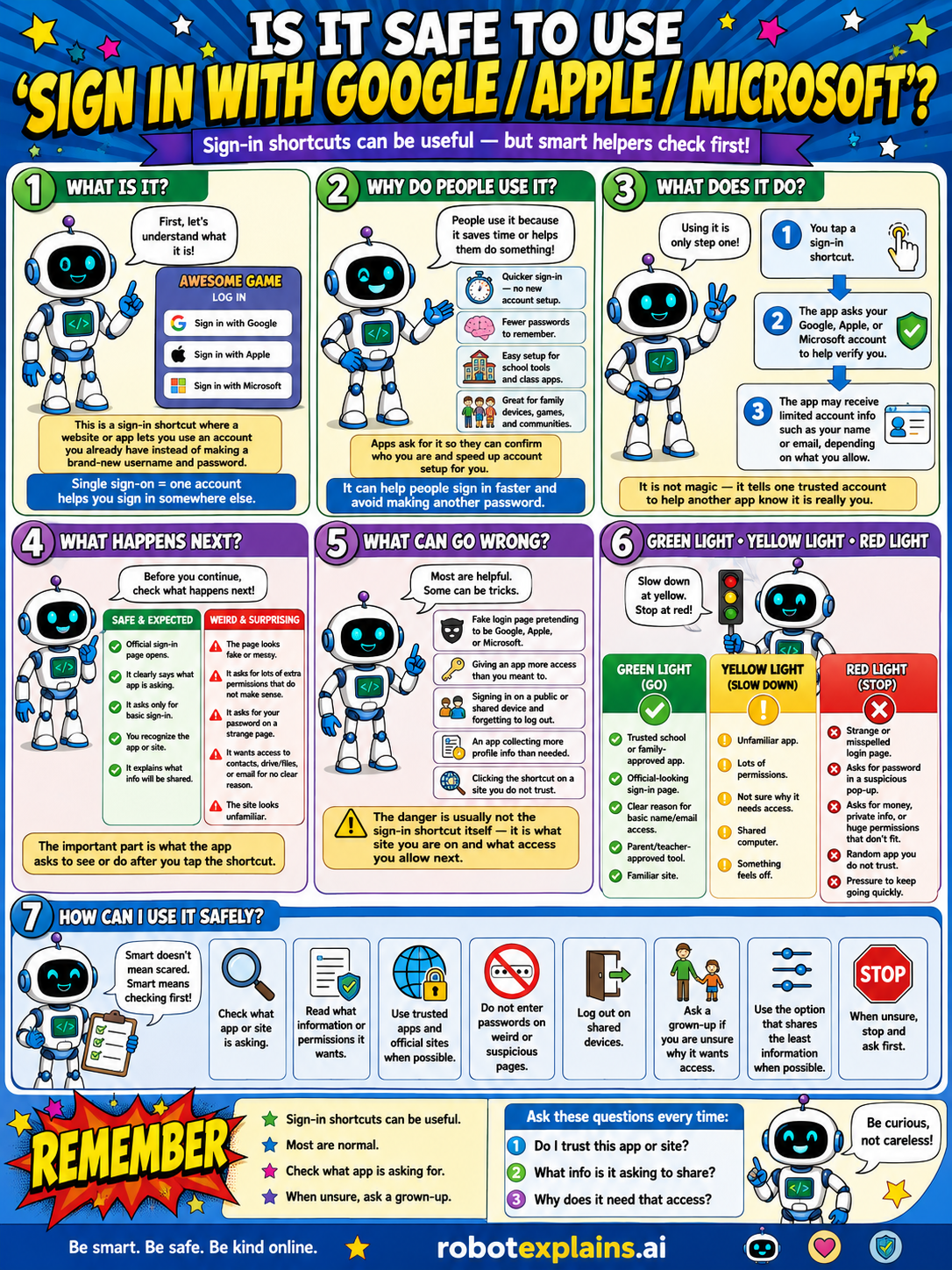
Sign-in shortcuts can be useful, but smart helpers check first. So, is it safe to use "Sign in with Google / Apple / Microsoft"? Usually yes, on apps you trust.
What is it? First, let's understand what it is. This is a sign-in shortcut where a website or app lets you use an account you already have instead of making a brand-new username and password. (Sign in with Google, Apple, or Microsoft.) Single sign-on = one account helps you sign in somewhere else.
Why do people use it? People use it because it saves time and helps them do something: it's quicker than making a new password, it means fewer passwords to remember, and it asks for your school login or family devices, games, and apps. Apps ask for it so they can confirm who you are and speed up account setup.
What does it do? Using it is only one step! You tap a sign-in shortcut, the app asks your Google, Apple, or Microsoft account to help verify you, and the app may receive limited account info, such as your name or email, depending on what you allow. It is not magic, it asks a trusted account to help another app know it's really you.
What happens next? Before you continue, check what happens next. The page asks you to sign in to a real, expected account, that's safe. A fake sign-in page that looks a little off is a weird, surprising red flag.
What can go wrong? Most are helpful, but some can be tricks: a fake login pretending to be Google, Apple, or Microsoft, giving an app more access or permissions than it really needs, an app collecting more profile info than needed, or a stranger contacting you through a site you do not trust. The danger is usually not the shortcut itself, it's what an app asks to see or do after you allow it.
Green light, yellow light, red light. A quick way to decide:
- 🟢 Green: a trusted, well-known app or site, an official-looking sign-in page, a familiar app, your parent's or school's account.
- 🟡 Yellow: an unfamiliar app, lots of permissions, or you're not sure it needs access — slow down.
- 🔴 Red: a strange or misspelled login page, asks for a passcode in a weird way, contact from strangers, or pressure to keep going quickly — stop and ask first.
How can I use it safely? Check what app or site is asking. Read what information or permissions it wants. Use trusted apps and official sites. Don't enter passwords on shared devices. Log out on devices that aren't yours. Ask a grown-up if you aren't sure. Use the option that shares the least information when possible. And when unsure, stop and ask first.
Remember: sign-in shortcuts can be useful, most are normal, but always check which app is asking and what info it wants to share. When unsure, ask a grown-up. Be smart, be safe, be kind online.
What changed?
Every tap changes something. The trick isn't fear — it's noticing. After you say “yes,” ask: what just changed?
- Signed in with Googlethe new app gets some of your Google info, like your name and email
- Connected the accountthe two apps are now linked together
- Tapped “Continue”you may have agreed to share more than you expected
What to remember
- Sign-in shortcuts are usually safe and handy.
- One trusted account signs you into other apps.
- Check which app is asking and what it wants to share.
- When unsure, ask a grown-up.
Words to know
- Single sign-on
- Using one account to log into many apps.
- Account
- Your login that holds your settings and info.
- Permission
- What an app is allowed to see or do.
- Trusted
- A big, well-known, safe account or app.
For grown-ups
Social sign-on (OAuth) is generally safe and often safer than creating yet another password — it reduces password reuse and lets a major provider handle authentication. The judgment points: confirm the app asking is legitimate, review what data it requests to share, and use it on trusted apps. The kid version keeps the convenience while teaching them to check the requesting app and the shared info, and to involve a grown-up for new accounts.
Want the full story? These go deeper: