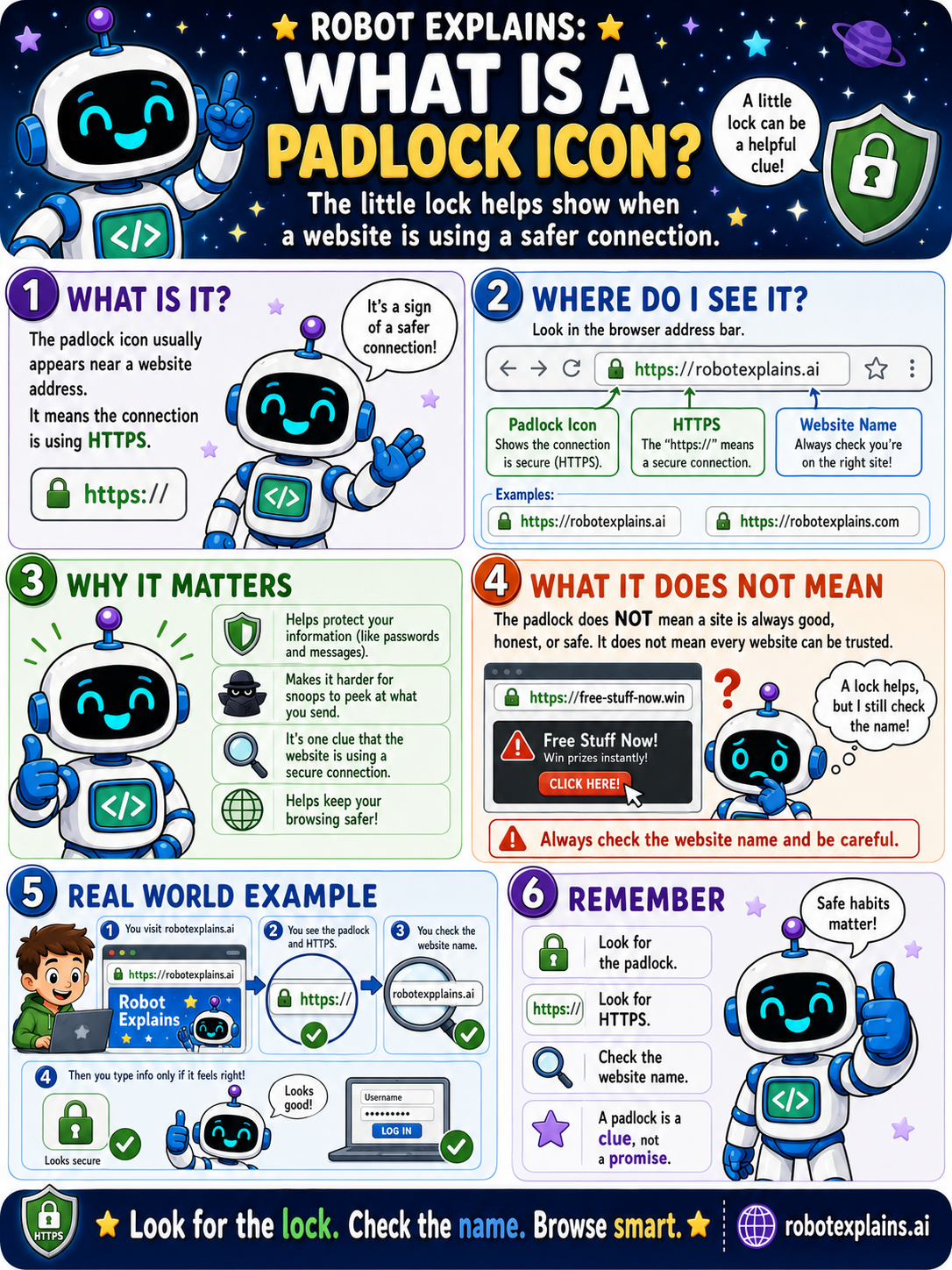
The little padlock icon in your browser's address bar is a helpful clue. It means the website is using a safer connection (HTTPS).
You will find it right at the start of the address bar, next to the website's address.
Why does it help? It tells you your information, like passwords and messages, is protected on the way, and that you are using a secure connection.
But here is the important part: a padlock does not mean a site is honest, good, or safe to trust. It only means the connection is private. Even a sneaky site can have a padlock.
So a padlock is a clue, not a promise. Always check the website name too.
Put together two habits: look for the lock, and check the name. Then browse smart.
What to remember
- The padlock means a safer, private connection (HTTPS).
- It does NOT mean the website is honest or safe.
- Even tricky sites can show a padlock.
- A padlock is a clue, not a promise, so check the name.
Words to know
- Padlock icon
- The lock in the address bar showing a secure connection.
- Address bar
- The box at the top where the web address shows.
- HTTPS
- The secure version of HTTP.
- Lookalike site
- A fake site with a name close to a real one.
For grown-ups
The padlock indicates the connection uses HTTPS/TLS, encryption with a valid certificate for that domain. It does not attest to the site's trustworthiness; phishing sites routinely use valid certificates. Teach kids that the padlock means 'private connection,' and the domain name is what to actually verify.
Want the full story? These go deeper: