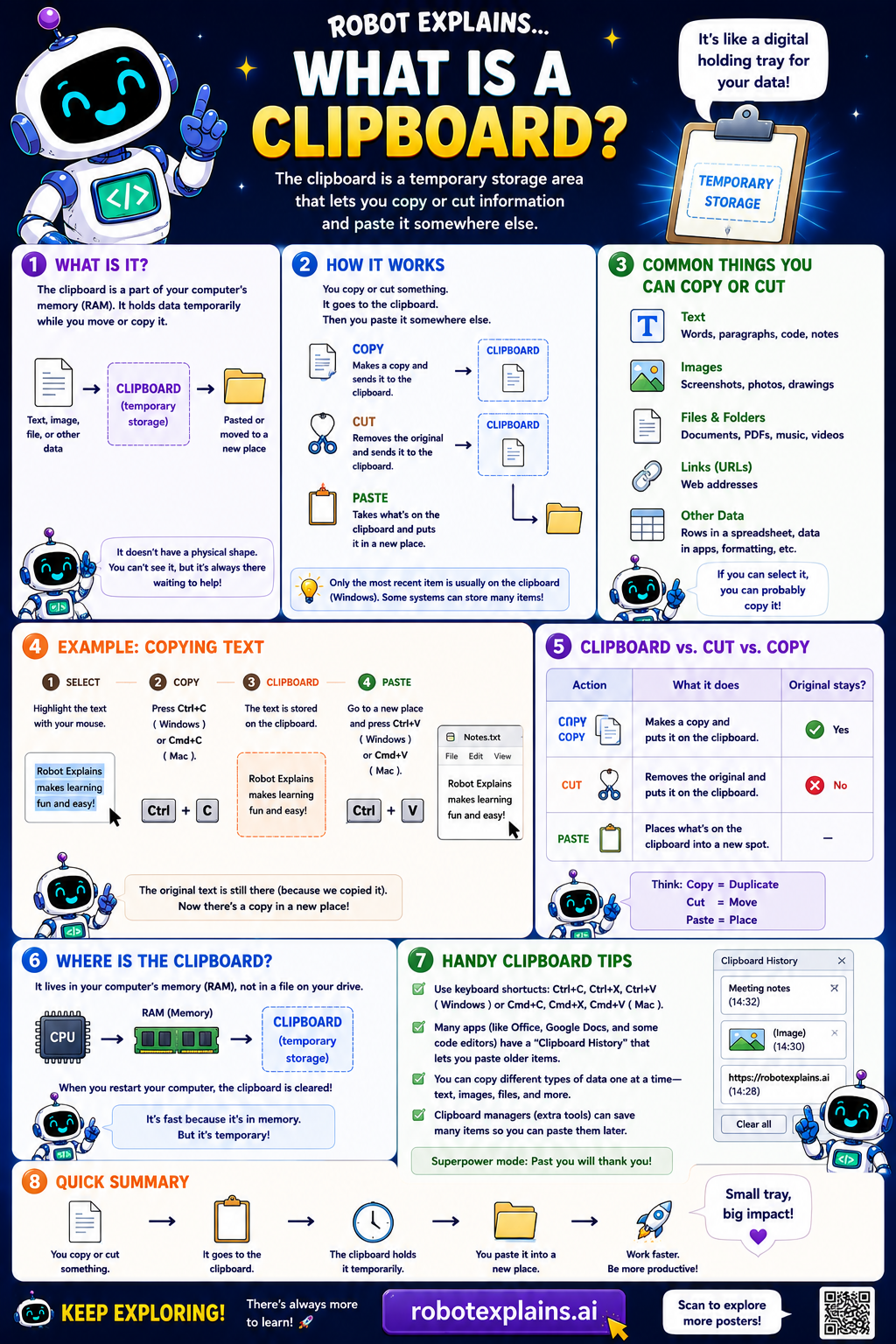
The clipboard is a part of your computer's memory (RAM) that temporarily holds data while you move or copy it. It's like a digital holding tray for your data!
How does it work? When you copy or cut something, it goes to the clipboard. Then you paste it somewhere else. Copy makes a copy and sends it to the clipboard. Cut removes the original and sends it to the clipboard. Paste takes what's on the clipboard and puts it in a new place.
Common things you can copy or cut: text (words, paragraphs, code, notes), images (screenshots, photos, drawings), files and folders, links (URLs), and other data (like a row in a spreadsheet, or data in apps and forms). If you can select it, you can probably copy it!
Here's an example, copying text. You select the text with your mouse, copy it (Ctrl+C on Windows or Cmd+C on Mac), and paste it (Ctrl+V or Cmd+V) where you want it. The original text is still there (because you copied it), and now there's a copy in a new place too.
Cut vs copy: copy makes a duplicate and the original stays. Cut removes the original and the original is gone from its old spot. Both place what's on the clipboard into a new spot when you paste.
Where is the clipboard? It lives in your computer's memory (RAM), not on a drive. When you restart, the clipboard is cleared, because it's temporary.
Handy tips: keyboard shortcuts make it fast (Ctrl/Cmd + C, X, V), some apps offer a "clipboard history" that lets you paste older items, and you can copy different types of data one at a time, text, images, and more.
Remember: you copy or cut something, it goes to the clipboard, the clipboard holds it, you paste it in a new place, and it works faster the more you use it!
What to remember
- The clipboard temporarily holds what you copy or cut.
- Copy keeps the original; cut removes it.
- Paste places the clipboard's contents in a new spot.
- It usually holds one thing at a time, and clears when power is off.
Words to know
- Clipboard
- Temporary storage for copied or cut items.
- Copy
- Make a duplicate; original stays.
- Cut
- Remove the original to move it.
- Paste
- Place the clipboard's contents somewhere.
For grown-ups
The clipboard is a small, temporary buffer (in RAM) that holds the most recent copied/cut item for pasting elsewhere, within or across apps. It's transient (lost on shutdown) and usually single-item, though OS 'clipboard history' features can keep several. Shortcuts: Ctrl/Cmd+C, X, V.
Want the full story? These go deeper: